Submitting a Comment Assignment
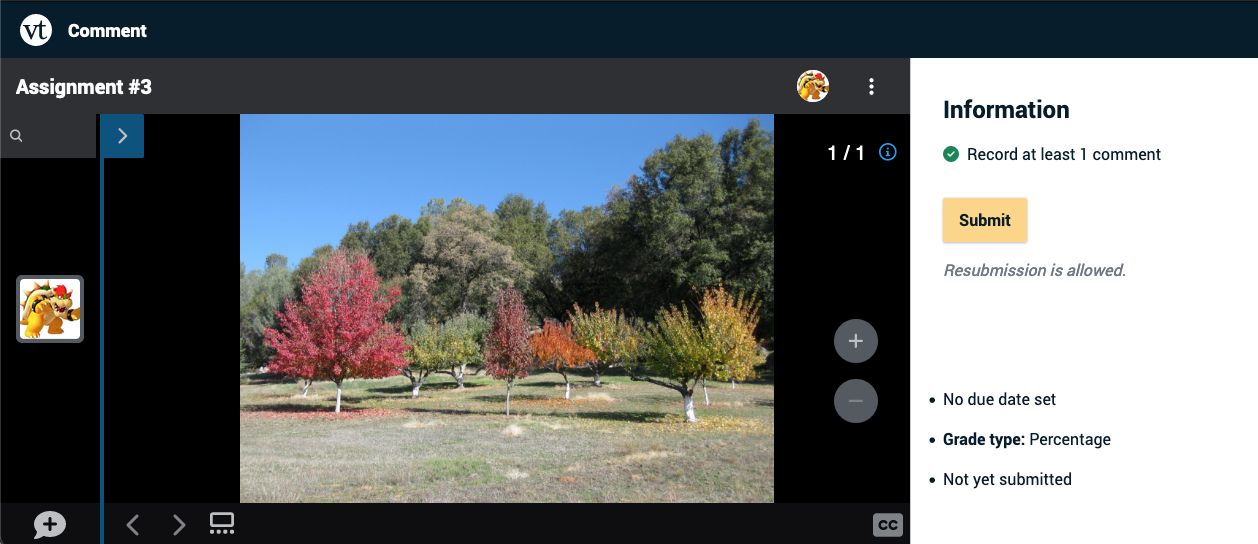
This assignment requires you to post comments on a VoiceThread that your instructor has created.
Computer
Regular commenting assignment
- Sign in to your course.
- Click on the VoiceThread assignment link set up by your instructor.
- Click the yellow “Start Assignment” button on the right.
- Record the required number of comments. See the commenting guide for more about how to comment.
- If your instructor has asked you to add slides, upload the required number of slides. See the slide addition guide for more about how to do this.
- Once you’ve met the requirements, you’ll see a blue check mark next to the to-do list on the right. Click the yellow “Submit” button on the right to complete your assignment.
Stacked commenting assignment (commenting on classmates’ VoiceThreads)
- Sign in to your course.
- Click on the VoiceThread assignment link set up by your instructor.
- Click the yellow “Start Assignment” button on the right.
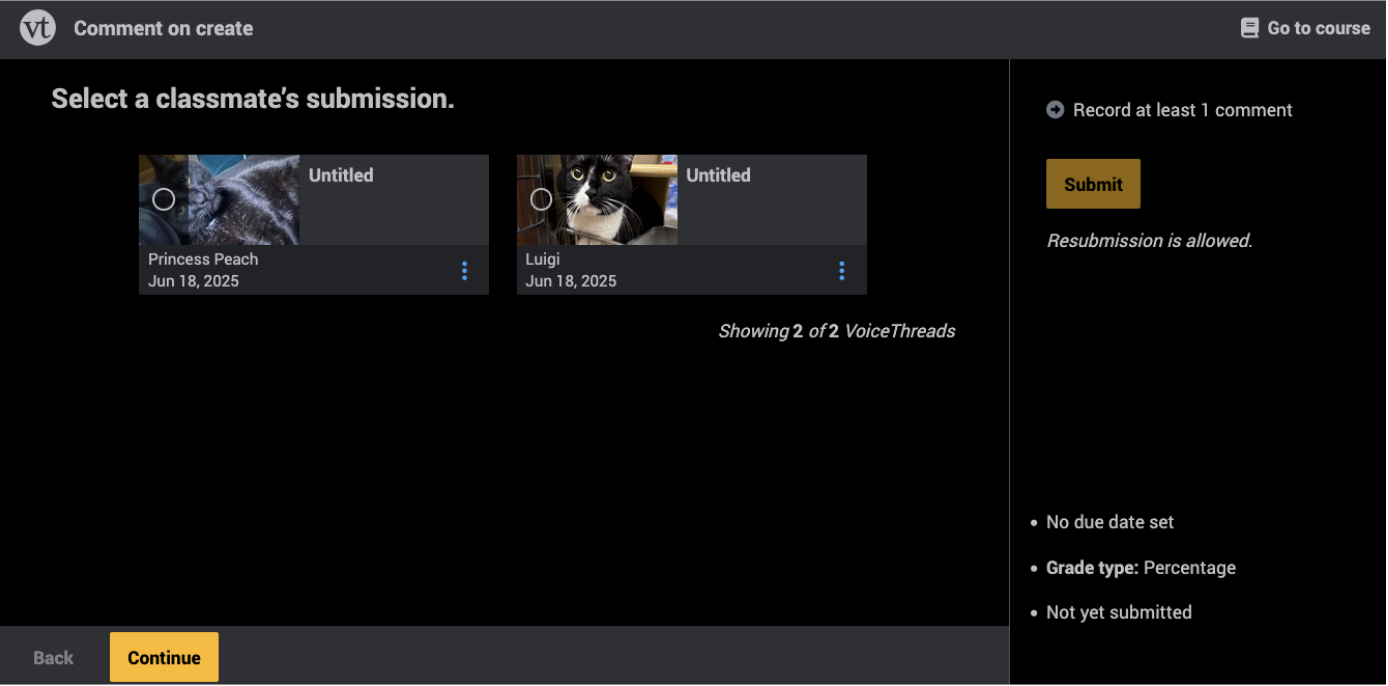
- Select which thread you want to comment on, then click “Continue.”
- Record the required number of comments. See the commenting guide for more about how to comment.
- If you want to record comments on another thread, click “Back” at the bottom of the page, and repeat steps 4 & 5.
- Click “Submit” on the right side of the page.
To view classmates’ comments on these threads, click on the “Student Gallery” button on the right.
Errors
While assignments should work seamlessly most of the time, you might occasionally encounter an error message that you need help resolving. Some of the most common ones are detailed here.
This assignment is currently being edited by your instructor.
This means your instructor currently has the assignment in edit mode. You won’t be able to work on it until they publish the assignment again. Please reach out to them if you continue to see this message for a prolonged period.